SpinsUP Mobile Casino: iPhone, Android and Web-App Access
 Available in US
SpinsUP supports mobile access on both iPhone and Android, but its current setup is best described as an installable web app rather than a confirmed native App Store or Google Play app. SpinsUP’s official install page tells Android users to open the site in a browser and choose “Add to Home screen”, then install it. For iPhone, it instructs users to open the site in Safari, use the Share menu and choose “Add to Home Screen”. No current native listing in Apple’s App Store or Google Play was confirmed.
That distinction matters. Adding the site to a home screen can make it feel app-like and gives you a launch icon, but it is still tied to SpinsUP’s web delivery rather than a separate native-store package. You can also use the ordinary mobile website without adding an icon. Before treating any download as official, start from SpinsUP’s own website and check how the installation is delivered.
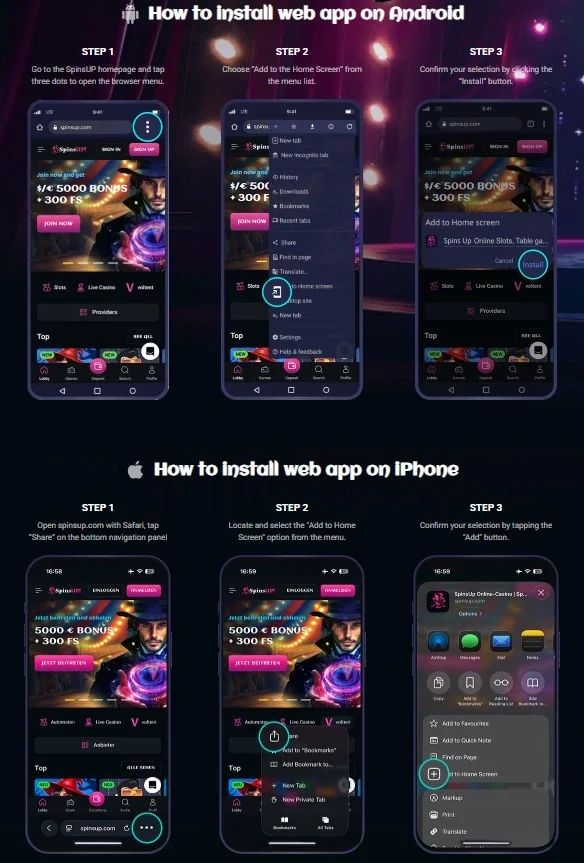
Table of Contents
- Does SpinsUP have an iPhone or Android app?
- How the Android home-screen installation works
- How the iPhone home-screen installation works
- Browser access versus the home-screen web app
- What you can access on mobile
- Australian location caveats still apply on mobile
- Login, account continuity and verification
- How to verify that you are using the official mobile route
- Which mobile option makes sense?
- FAQ
- Continue with SpinsUP games, KYC and licence checks
Does SpinsUP have an iPhone or Android app?
SpinsUP markets a “mobile app” page, but the installation instructions shown there are web-app instructions. On Android, the process begins on the SpinsUP website and uses the browser menu to add the site to the home screen. On iPhone, the instructions use Safari’s Share menu and the “Add to Home Screen” command. That is materially different from opening the App Store or Google Play, finding a native SpinsUP listing and installing a signed store package.
The current SpinsUP experience is therefore best described as an “installable web app” or “home-screen web app”, not a native iOS or Android app. If a native store listing appears later, its publisher and official connection to SpinsUP should be checked directly in the relevant store.
This distinction also helps avoid unofficial APK claims. SpinsUP’s published installation flow does not require Australian readers to download an APK from a third-party site. Files distributed outside the official SpinsUP web flow should not be treated as part of the documented installation process.
How the Android home-screen installation works
SpinsUP’s official Android instructions are browser based. You open the SpinsUP home page, open the browser menu, select the option to add the site to the home screen and confirm installation. The exact wording of the browser menu can vary by browser version, but the official flow is clearly a web installation rather than a store download.
Once added, the icon provides a quicker way to launch the site. The important point is what does not change: your account is still the same web account, the content is still served through the SpinsUP web environment, and game availability still depends on the catalogue and location rules that apply when the site loads. Installing the icon does not create a separate account or unlock a different Australian games catalogue.
If you prefer not to install anything, using the normal browser is the simpler option. A bookmark can serve much the same navigational purpose without presenting the site as an installed app. The home-screen version is mainly a convenience layer.
How the iPhone home-screen installation works
For iPhone, SpinsUP instructs users to open its casino site in Safari, tap the Share control, choose “Add to Home Screen” and then confirm. Again, that is Apple’s web-app/home-screen mechanism, not evidence of a native SpinsUP App Store listing.
The practical advantage is direct access from an icon. The trade-off is that browser and web-app behaviour can depend on Safari and iOS web capabilities rather than features of a dedicated native client. There is no controlled performance testing here to support claims that the home-screen version is faster, more stable, more secure or more battery-efficient than ordinary browser access.
Users should also be cautious with lookalike app-store results or third-party download pages. A name or logo resembling SpinsUP is not enough to establish that a package is official. The source-backed route described here begins at SpinsUP’s own install page and uses Safari’s built-in home-screen function.
Browser access versus the home-screen web app
| Point | Mobile browser | Home-screen web app |
|---|---|---|
| How you open it | Type or bookmark the SpinsUP web address | Tap the icon added from the official site |
| Store download | None | None in the verified official instructions |
| Account | Existing SpinsUP web account | Same web account environment |
| Catalogue | Location-dependent web catalogue | Location-dependent web catalogue |
| Updates | Web content loads from the site | Web content loads from the site |
The biggest difference is therefore convenience, not a separate product universe. A home-screen icon can reduce the steps needed to reopen the site and may use a more app-like window depending on the device. It does not prove that a native client exists, and it does not bypass location rules.
What you can access on mobile
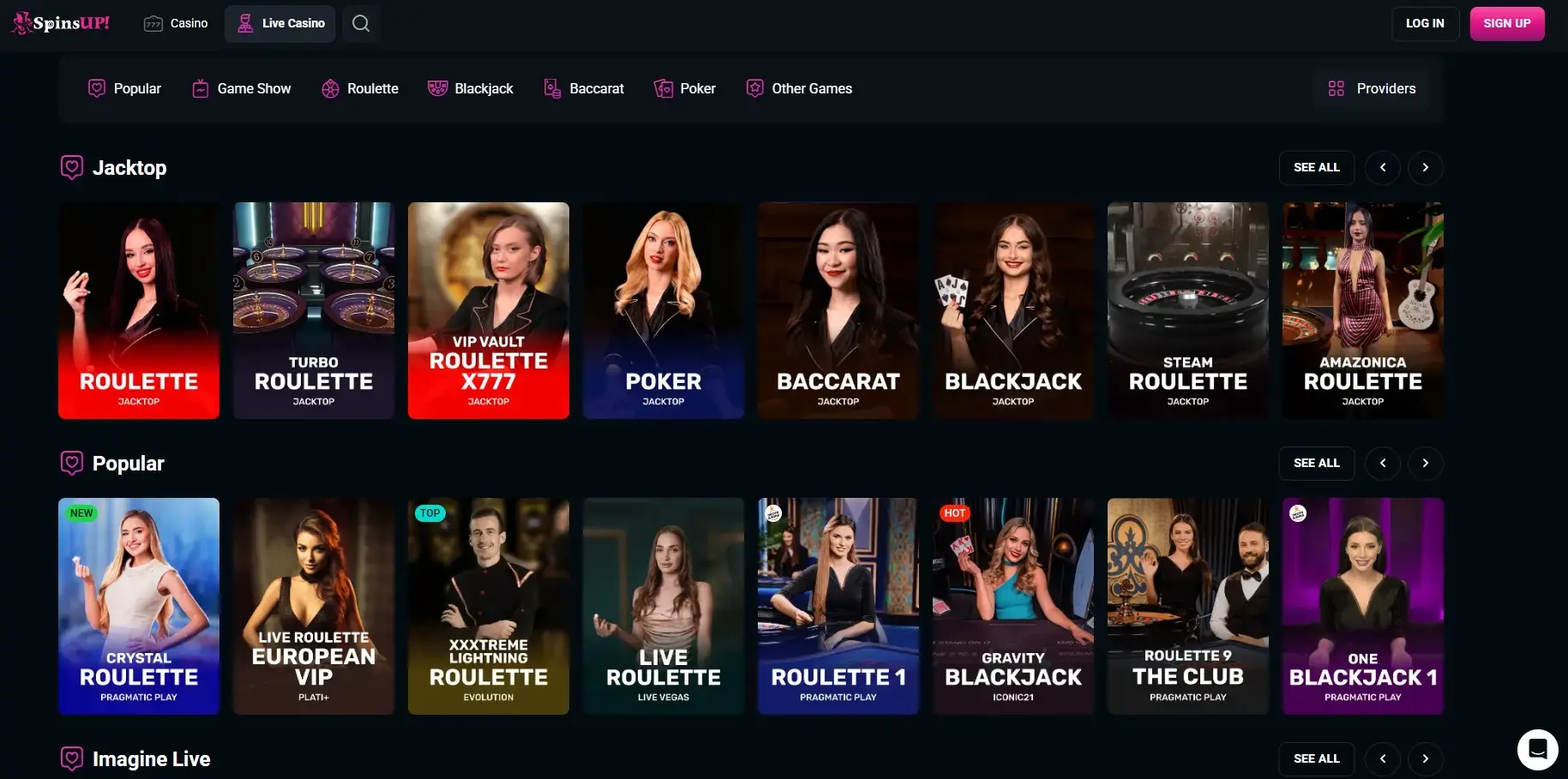
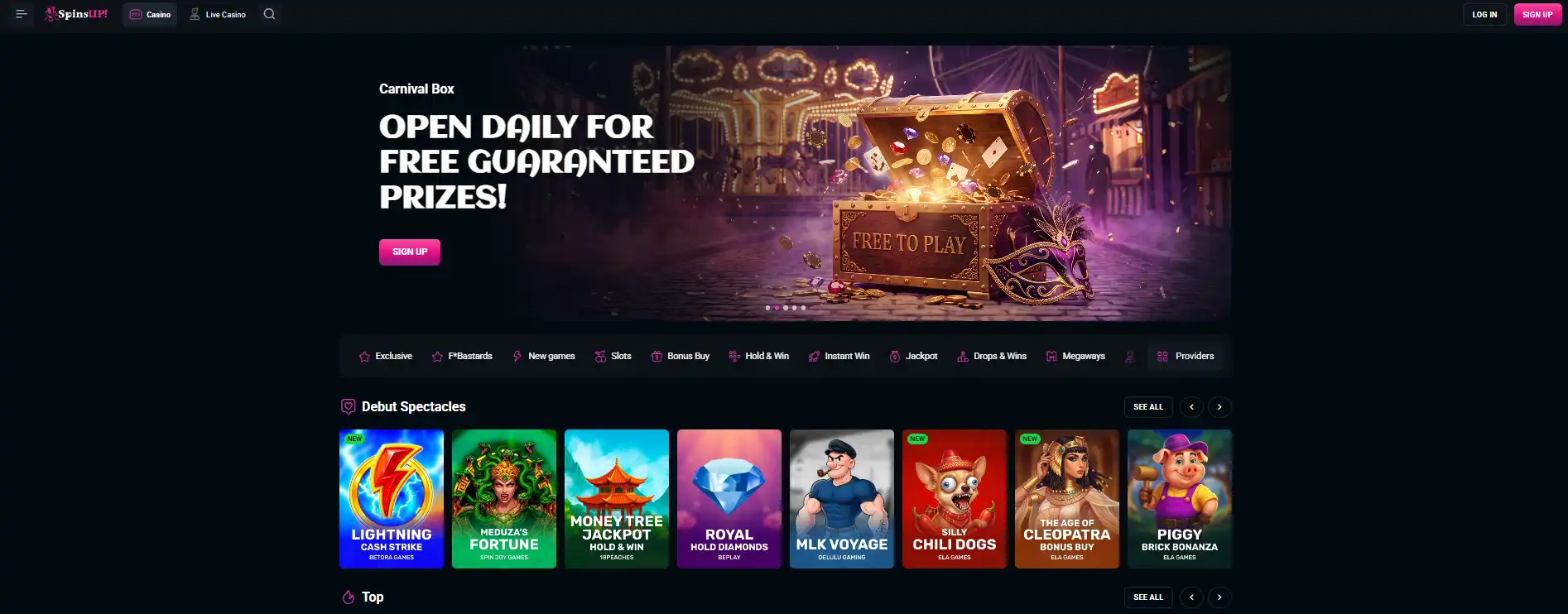
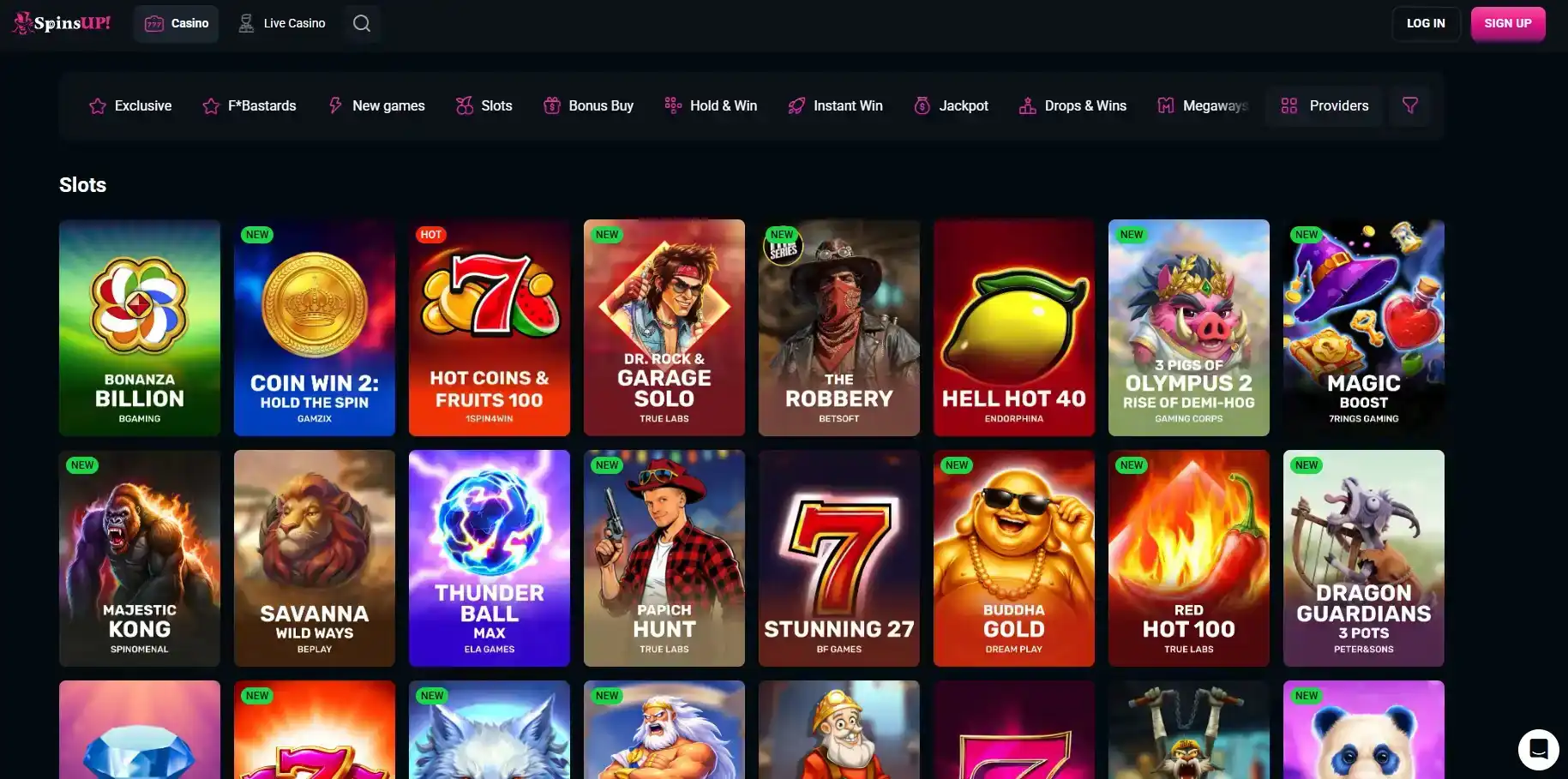
The current SpinsUP site exposes its casino navigation, including slots/pokies and a live casino section. The live area contains dedicated categories for roulette, blackjack, baccarat and poker. On a phone, those same broad product categories can be reached through the web interface, subject to the game and provider inventory actually made available to the connection.
For a deeper catalogue explanation, see the SpinsUP games guide. If your main interest is dealer-streamed tables, the SpinsUP live casino guide explains why a visible global provider list is not proof that every table is accessible from Australia.
Mobile compatibility does not guarantee that every game will run equally well on every handset. Game studios set their own technical requirements, and older browsers, restricted orientation, memory limits or an unstable connection can affect individual titles. Performance can therefore vary by device, browser and game.
Australian location caveats still apply on mobile
SpinsUP has an English-AU localisation, but localisation is not the same thing as regulatory approval or unrestricted game access. SpinsUP’s terms say that some games can be unavailable in particular countries because of provider restrictions. The terms specifically identify Australia in restrictions affecting some providers. Those rules apply regardless of whether you open the site in a browser or from a home-screen icon.
In other words, installing the web app does not change the legal or catalogue layer. It is a method of launching the same web service. If a provider blocks a game for Australia, adding SpinsUP to the home screen does not create a permitted version of that game. Likewise, if a user sees a location restriction, the correct response is not to treat the installed icon as a workaround.
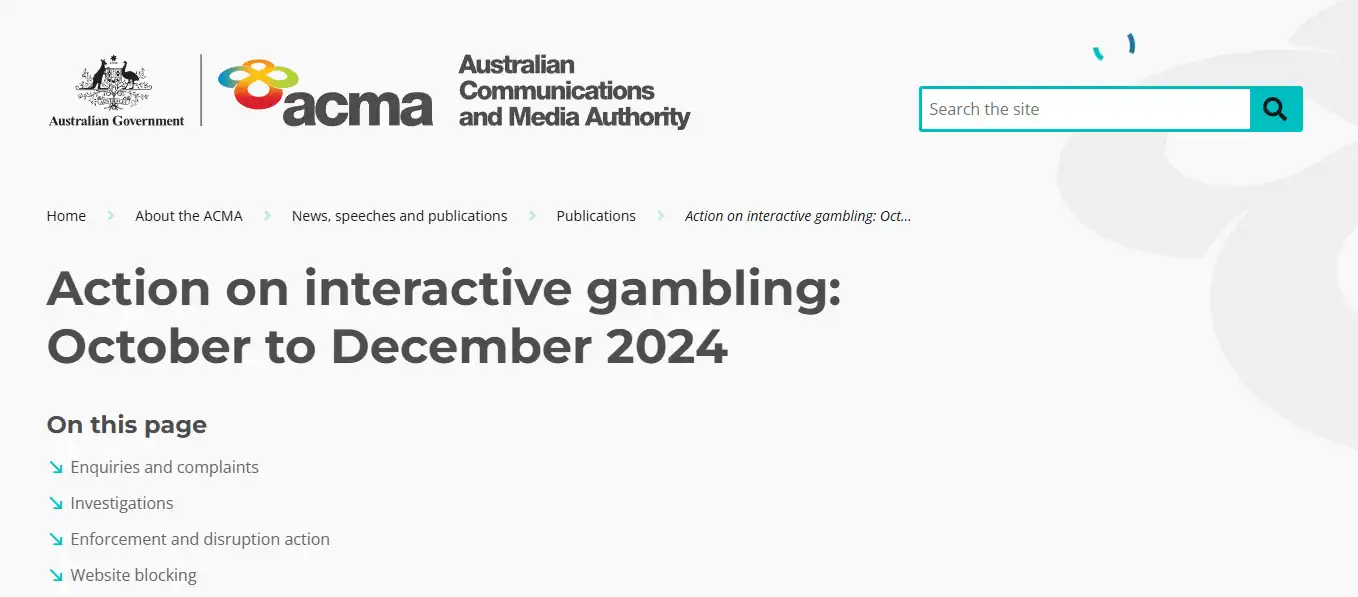
Regulatory questions are covered separately in the SpinsUP licence and ACMA guide. An AU-localised interface or install page should be assessed separately from regulatory status.
Login, account continuity and verification
Because the mobile route is web based, the useful mental model is one account accessed through different launch methods. Logging in through a mobile browser or a home-screen shortcut does not create a second mobile account. If SpinsUP requests account verification, those requirements belong to the account rather than to one device icon.
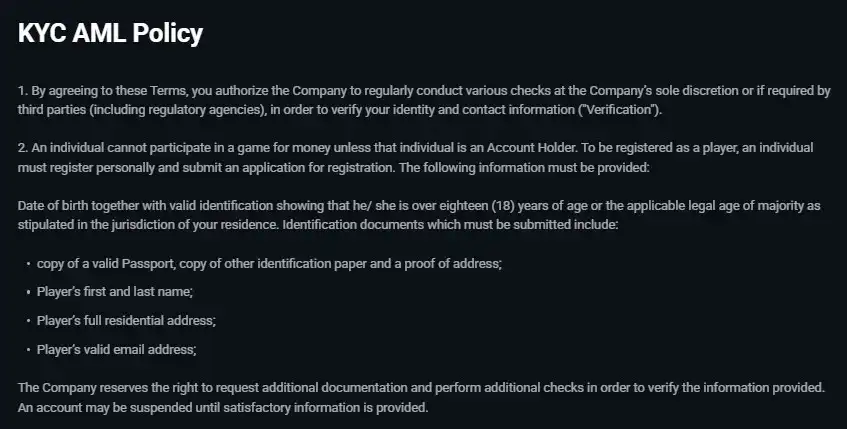
Identity verification and account checks are covered in the SpinsUP registration and KYC guide. On mobile, the important point is that a home-screen shortcut still uses the same account and does not bypass verification requirements.
How to verify that you are using the official mobile route
- Start from the official SpinsUP website rather than a third-party APK or download directory.
- Use SpinsUP’s own install page if you want the home-screen version.
- On iPhone, follow the Safari “Add to Home Screen” flow described by SpinsUP.
- On Android, use the browser menu and the home-screen installation flow described by SpinsUP.
- Do not assume a similarly named store listing is official unless the publisher identity and link can be independently verified.
Many casino sites use the word “app” loosely, but SpinsUP’s published instructions describe a website installed to the home screen. That is a meaningful technical distinction from a native App Store or Google Play application.
Which mobile option makes sense?
Use the normal browser if
You want the simplest access path and do not need a separate home-screen icon.
Add the web app if
You use the site repeatedly and prefer launching it directly from the home screen using SpinsUP’s official instructions.
Avoid unofficial downloads if
A third-party page asks you to install an APK, profile or package that is not part of the verified SpinsUP web-app flow.
Re-check the live catalogue if
You want a particular game or provider, because mobile installation does not override location-dependent availability.
For Australian readers, the decisive distinction is not iPhone versus Android so much as native-store app versus installable website. The published SpinsUP instructions support the installable-website route on both platforms.
FAQ
Is there a verified native SpinsUP iPhone app?
No current native App Store listing was confirmed. SpinsUP’s official iPhone instructions use Safari’s “Add to Home Screen” function.
Is there a verified native SpinsUP Android app?
The official SpinsUP installation page uses a browser home-screen installation flow, which is different from a native Google Play app.
Do I need to install the web app to use SpinsUP on mobile?
No. The installable home-screen route is a convenience option. The site can also be accessed through a mobile browser.
Does the mobile version unlock games restricted in Australia?
No such claim is supported. Provider and location restrictions apply independently of whether the site is opened in a browser or from a home-screen icon.
Continue with SpinsUP games, KYC and licence checks
For the next step, compare SpinsUP Australia review, SpinsUP games and SpinsUP live casino.
For closely related details, see SpinsUP registration and KYC and SpinsUP licence and ACMA.
Prepared by the SpinsUP Casino editorial staff.